How to Record a Meeting on Zoom, Meet & Teams (No Bot, Free)
Step-by-step: record any meeting on Zoom, Google Meet, or Microsoft Teams for free - locally, with no bot joining the call. Transcription included.


TL;DR
There are three ways to record a meeting for free in 2026: Meetily Community Edition (open source, records and transcribes 100% locally, no bot joins the call, works with Zoom, Google Meet, Teams, Discord, Slack Huddles, and Webex), your platform's built-in recorder (free on Zoom; Meet and Teams need paid plans), or OBS Studio for full manual control without transcription. Whichever you pick, announce the recording first; consent laws apply everywhere.
There are three ways to record a meeting in 2026: your platform's built-in recorder (free on Zoom, paid on Google Meet and Teams), a desktop recording app that captures system audio with no bot joining the call, or a screen recorder like OBS Studio. Which one you want depends on what "free" needs to include. Meetily, a privacy-focused desktop recording app from Zackriya Solutions (Community Edition free, MIT-licensed open source), records and transcribes on-device, 100% locally, and the audio never leaves your machine. This guide walks through all three methods, plus the consent rules that apply no matter which you pick.
How Can I Record a Meeting for Free?
Two paths cost nothing. Zoom's built-in local recording works on every Zoom plan, though it stops at Zoom calls and free plans get no transcription. Meetily Community Edition records and transcribes locally, and the same setup covers Zoom, Google Meet, Microsoft Teams, Discord, Slack Huddles, and Webex. Here is how every method in this guide compares.
| Method | Cost | Works on | No bot joins call | Transcription | Where stored |
|---|---|---|---|---|---|
| Local recorder app (Meetily) | Free (Community Edition, MIT) | Zoom, Meet, Teams, Discord, Slack Huddles, Webex | Yes | Yes, local (99+ languages) | Your device |
| Zoom built-in | Free on all Zoom plans | Zoom | Yes* | Paid plans | Your device |
| Google Meet built-in | Paid plans: Workspace Individual, Google One Premium, or Business Standard ($14/user/month and up) | Google Meet | Yes* | With paid plan | Google Drive |
| Teams built-in | Paid Microsoft 365 plans | Microsoft Teams | Yes* | Yes | OneDrive/SharePoint |
| OBS Studio | Free (GPLv2) | Anything on screen | Yes | No | Your device |
*Built-in recorders notify all participants automatically; with any method, announce the recording yourself (see the consent section).
Method 1: How to Record Any Meeting Locally with No Bot (Meetily)
Meetily is a desktop-based audio capture app: it records the meeting's system audio directly on your computer, so no bot joins the call. Recording and transcription run 100% locally on Windows and macOS (M Series), and audio never leaves the device.
Because it grabs the system audio rather than joining the call, the same setup works for Zoom, Google Meet, Microsoft Teams, Discord, Slack Huddles, and Webex. It keeps working offline once installed, is GDPR and HIPAA compliant by design, and the code is public: Meetily on GitHub (31K+ stars)(opens in new tab).
Time: ~10 minutes for first-time setup, seconds per meeting after that. Difficulty: easy. Prerequisites: Windows or macOS (M Series), 8GB RAM minimum (16GB recommended).
-
Download Meetily Community Edition. The installer is free, MIT-licensed open source, and lives at meetily.ai/downloads: a .dmg for macOS, an EXE for Windows. On Linux you can build from the open source repo(opens in new tab), but there is no native Linux app.
-
Choose a transcription model. Meetily runs Whisper (OpenAI's open source speech-recognition model) or Parakeet (NVIDIA's speech-recognition model) on your own machine. If your laptop is older, pick a smaller model like base or small; large-v3 gives the best results of the available model sizes and handles 99+ languages.
-
Start recording before you join the call, then announce it as soon as the meeting begins (step 4). Meetily picks up the system audio on its own; there is no bot in the call and nothing to install on the meeting side.
-
Tell participants you're recording. Bot-free means nobody sees a recorder in the participant list, not that consent laws stop applying. Say you are recording as the meeting starts (more in the consent section below).
-
Stop recording when the meeting ends. The transcript and the AI summary (key decisions, action items) are built locally, and recordings go to a folder you choose on your own disk rather than a cloud server. On Pro, speaker identification labels who said what: it runs on-device like the rest of the pipeline, works on imported audio as well as live recordings, and renaming a speaker once updates the whole transcript.
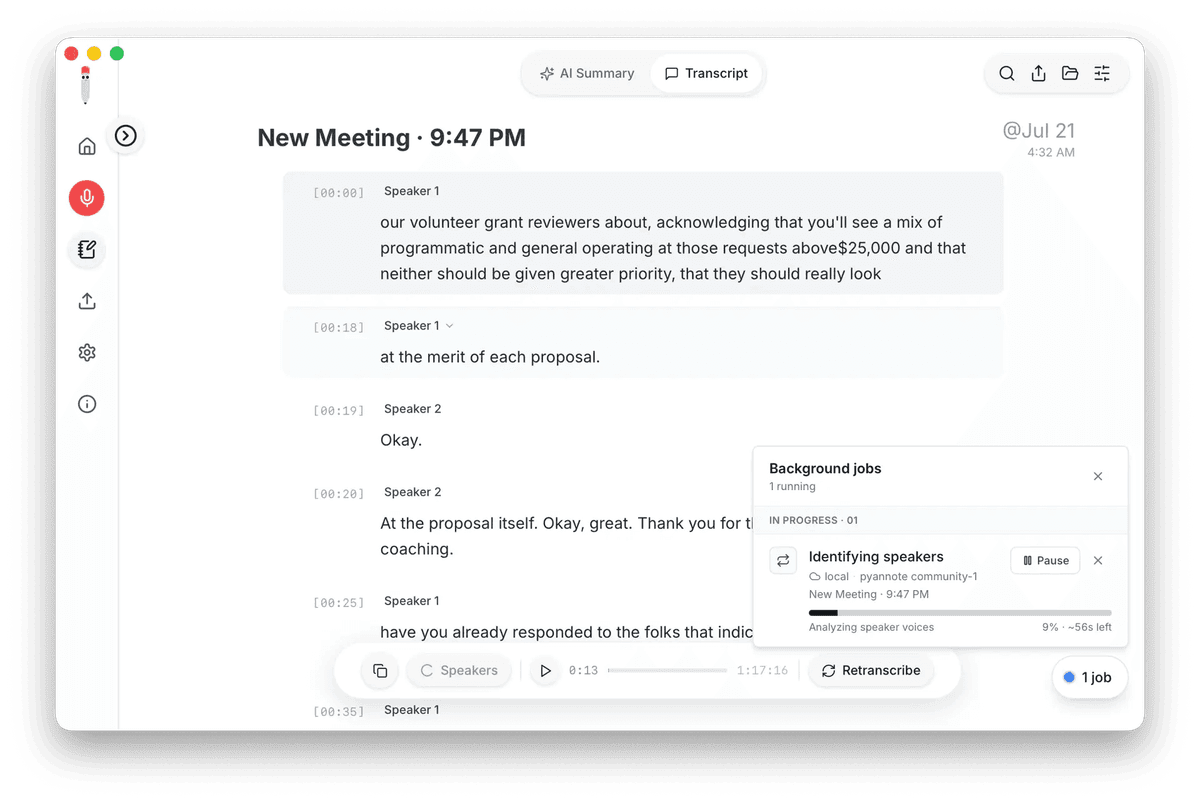

A few honest gaps. Transcription runs on your own CPU or GPU, so an older machine wants a smaller model. There is no mobile app yet; mobile companion apps are in development. There are no built-in CRM integrations yet (Salesforce and HubSpot are on the roadmap), though with Meetily Pro your own script can send notes to a CRM using its webhooks and command-line tool. If you want transcripts landing in a CRM with no scripting, a cloud tool like Fireflies.ai is the better fit; compare the best free meeting recorder tools for the trade-offs.
Method 2: How to Use the Built-In Recorder (Zoom, Google Meet, Teams)
How do you record a Zoom meeting for free?
Local recording is free on every Zoom plan. In the desktop app, open Settings, then Recording, and check where the local folder points; in a meeting, click Record, then Record on this Computer. Everyone in the call sees a recording notice, and the MP4 shows up after the meeting ends.

Free accounts get no cloud storage and no transcription, so pair the recording with Method 1 if you need a transcript. Zoom documents the details in its local recording guide(opens in new tab).
How do I record a Meet meeting?
Google Meet's built-in recording needs a paid plan: Google Workspace Individual or Google One Premium for personal accounts, or Workspace Business Standard ($14/user/month billed annually) and up for organizations. Free Google accounts cannot use it at all; on one, record the call locally with a desktop recorder instead (Method 1).
On an eligible plan, open Activities, choose Recording, then Start recording. The file lands in the organizer's Google Drive and participants get notified. Google's own steps are in Workspace help(opens in new tab).

How do you record in Microsoft Teams?
Teams recording needs a paid Microsoft 365 plan. In a meeting, open More actions, pick Record and transcribe, then Start recording. The recording saves to OneDrive or SharePoint with a transcript and speaker attribution, and everyone sees the recording banner. Microsoft's documentation is on Microsoft Learn(opens in new tab).

Method 3: How to Record with OBS Studio (Full Manual Control)
OBS Studio, the OBS Project's open source recording and streaming tool, is free under GPLv2 and records whatever is on your screen to a local file. Add a Display Capture source, add your system audio as an Audio Output Capture source (on macOS this takes a virtual audio driver), then hit Start Recording. You get broadcast-grade control over exactly what is captured, and in exchange you do the setup yourself: OBS has no transcription and no meeting-specific features. Project site: obsproject.com(opens in new tab).

How Do You Record and Transcribe a Meeting for Free?
Two free paths deliver both. Meetily Community Edition pairs local recording with local Whisper and Parakeet transcription and keeps working offline. Fathom's free tier also records and transcribes, in the cloud with a visible bot; see the full free-tier comparison. Zoom, Meet, and Teams all put transcription behind paid tiers, and OBS does not transcribe at all.
A plain transcript is one wall of text, which is fine for a solo call and awkward for a six-person one. Attributing each line to a speaker is a separate capability: Meetily puts speaker identification in Pro, where it runs on-device alongside transcription, so the audio still never leaves the machine. Cloud assistants label speakers too, but the audio goes to their servers to do it.
In-person meetings work too. Put a laptop in the middle of the table with a USB conference microphone and capture the room with Meetily or OBS exactly the same way. Cloud bot tools cannot help here; there is no call for the bot to join. For interviews and voice notes outside a call, the same app works as a voice recorder with on-device transcription.
Is It Legal to Record a Meeting? (Read Before Recording)
Mostly yes, as long as you handle consent. Some places allow one-party consent, where being part of the call yourself is enough; others require everyone's agreement. The rule that works everywhere is simple: say you are recording before you start, and get a yes.
Consent comes first
In the US this varies state by state. California Penal Code 632, the state's all-party consent statute, is the best-known example (text of the statute(opens in new tab)). Most EU countries expect all-party consent in practice, and workplace recordings fall under the GDPR (Regulation (EU) 2016/679 on EUR-Lex(opens in new tab)). Recording locally (Method 1) at least keeps the files off third-party clouds, so control over the data stays with you, but consent comes first either way. This is general information, not legal advice; rules vary by state and country.
Frequently Asked Questions
Summary
If you just want the short version: Meetily Community Edition records and transcribes locally, with no bot, on Zoom, Google Meet, Teams, Discord, Slack Huddles, and Webex, and has passed 599,000+ downloads. Zoom's own local recording is free but leaves you without a transcript. Meet and Teams recording sit behind paid plans. OBS gives you full control and no transcription. And whatever you pick, announce the recording first; consent is required everywhere.
Ready to try Meetily?
Join 599,000+ users who use Meetily for private meeting transcription. No bots, privacy first. Community Edition free.
Star on GitHub (31K+) · Open source & self-hostable
Get Started with Meetily
Meetily Pro
Advanced features for individuals and teams.


